
FileChimp Central free trial
Try FileChimp Central free for 2 weeks
Install it on your own server, connect your Microsoft 365 mailboxes and folders, and see your email filed and your documents found. If you buy a licence, your trial carries straight on with nothing to reinstall.
Your IT team reviewing it first? Get the technical pack. Central works in classic Outlook too. Prefer an add-in on each PC? Download the FileChimp Classic trial instead.
What you need
A Windows server
A Windows server in your office or in the cloud, or a PC that stays on, that can reach your file shares.
Microsoft 365
Microsoft 365 mailboxes, and a Global Administrator who can approve FileChimp’s access and add the Outlook add-in for your team.
Somewhere to file
Your file shares, SharePoint libraries or OneDrive folders. FileChimp files into the folders you already have.
Start your trial in four steps
Install
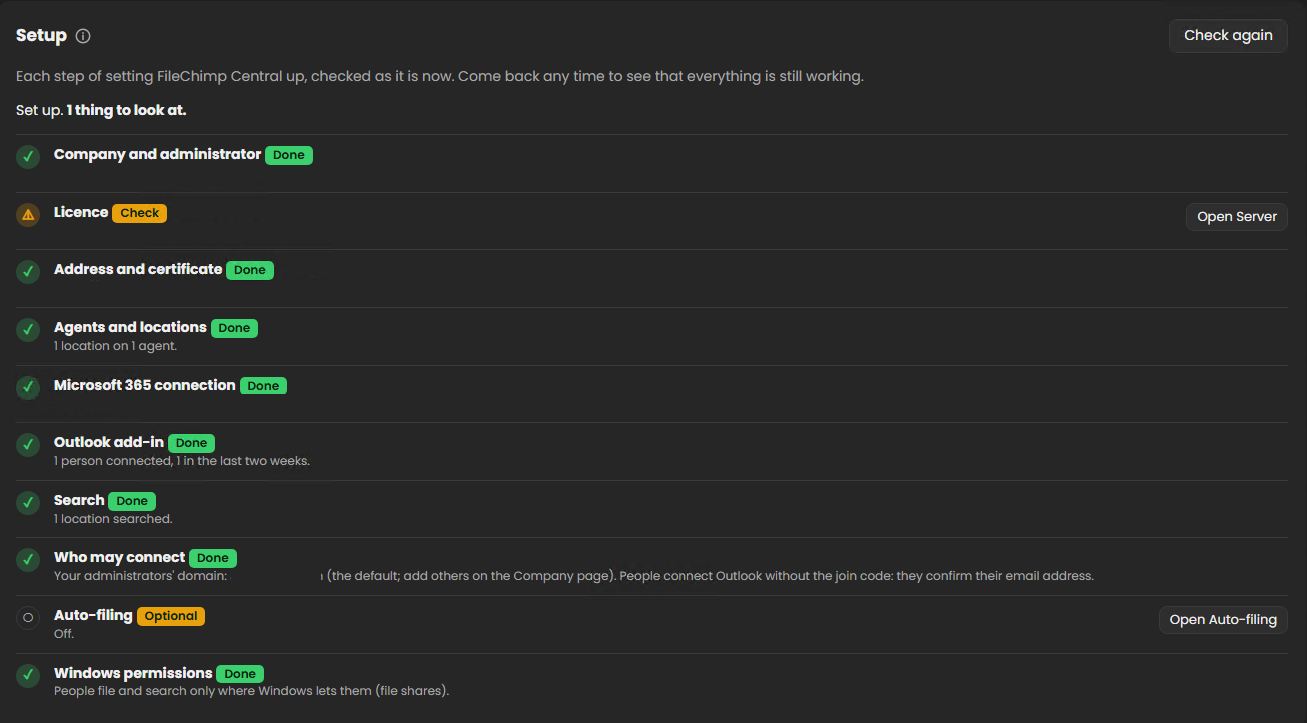
Download FileChimp Central and run the installer on your server. When it finishes, the dashboard opens with Setup steps that guide you through the rest.
Start the trial
Confirm your company and administrator, choose Start a free trial and enter the 6-digit code we email you. Your 2 weeks begin.
Connect
Add the folders and SharePoint libraries to file to, then connect Microsoft 365 with Set up Microsoft 365 for me.
Add the add-in
Deploy the FileChimp add-in from the Microsoft 365 admin centre, and your team can start filing.
About the trial
What happens when the 2 weeks are up?
FileChimp Central stops filing and searching until a licence is added. Everything already filed stays in your folders. When you buy, the same installation carries on, with no reinstall and no lost settings.
Can I have longer to try it?
Yes. Get in touch and we can extend your trial.
What do you see during the trial?
Starting a trial sends us your email address, company and name, plus the server’s name and FileChimp version, so we can help and follow up. Your email and documents never leave your own systems.
We already use FileChimp Classic. Can we trial Central?
Yes. Try FileChimp Central whenever you like, and move across at a time that suits you.
Free 15-minute setup call
We’ll join you on a screen share and get your trial running: install, start the trial, connect Microsoft 365 and add your first locations. One free call per company: free calls are for businesses, not individuals.
Please have these ready before the call
- The server, switched on, with an administrator login so FileChimp Central can be installed. It needs internet access.
- A Microsoft 365 Global Administrator on the call, or their sign-in, to approve FileChimp’s access to your mailboxes and SharePoint and to add the Outlook add-in.
- Access to your file shares: an account that can read and write the folders FileChimp will file into and search.
- Where to file: the shares, SharePoint libraries or OneDrive folders you want to start with.
- One or two people to test with, so we can check filing works in their Outlook.
If something on the list isn’t ready, or setting up takes longer than 15 minutes, extra time can be booked as paid support. We also offer paid setup and training for rules and larger rollouts.
Pick a time that suits you, or send us a question first.
